United states
 Canada
 Brazil
 America Latina
 België
 Deutschland
 España
 France
 Italia
 Nederland
 Portugal
 United Kingdom
 Other European countries
 Australia
 China
China Hong Kong
 Japan
Japan Singapore
 South Korea
Product Support Center
Find drivers, manuals, tutorials, and FAQs for your portable scanner.
Supported Products:
- IRIScan Book 7
- IRIScan Book 7 Dyslexic
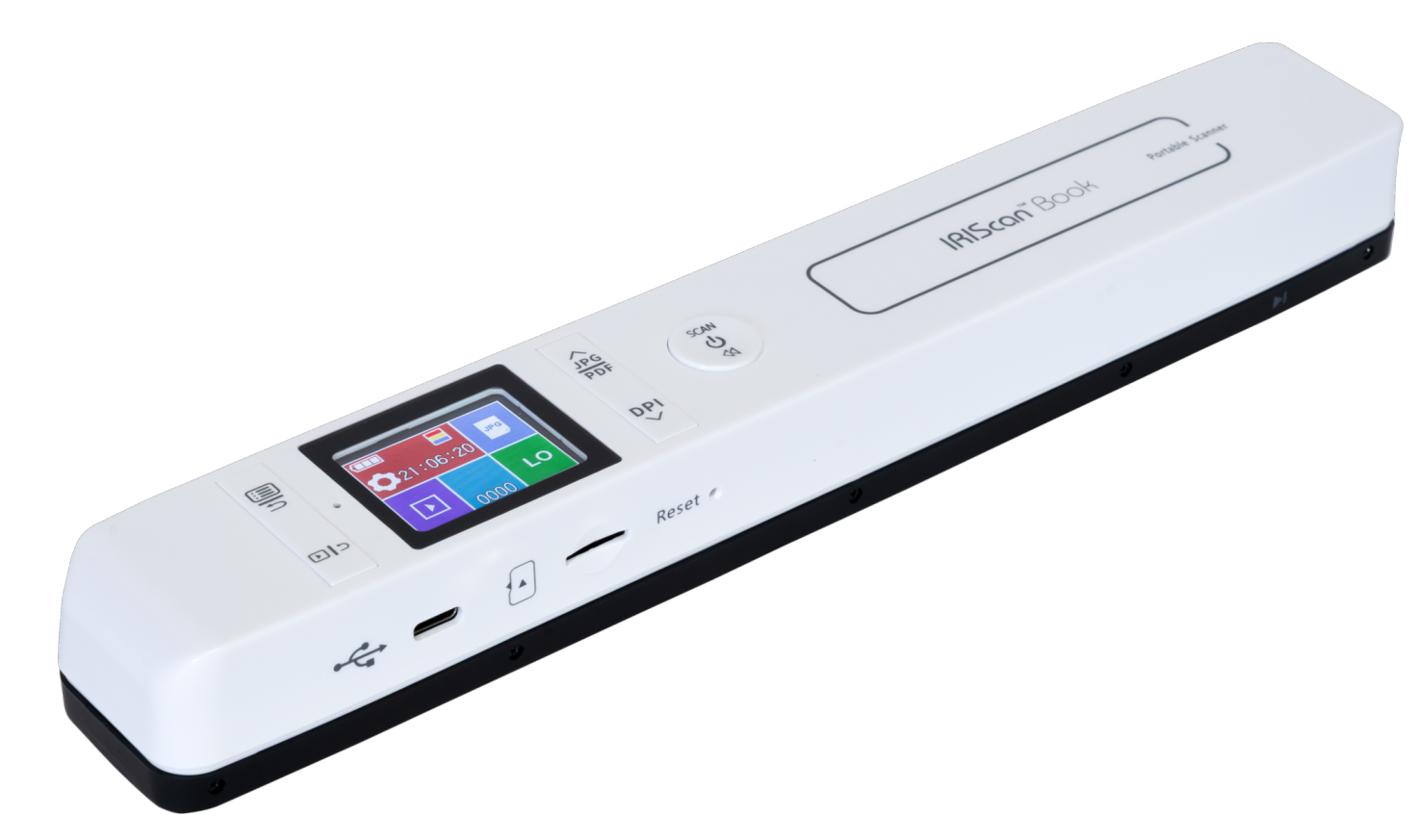
How to Use (No Computer)
Follow these steps to scan to the MicroSD card without a computer.
Charge

- Charge via USB-C for 30 minutes.
- Light turns green when full.
Insert SD Card

- Insert the MicroSD card.
- Push until you hear a click.
Power On

- Hold Power button for 3 seconds.
Scan
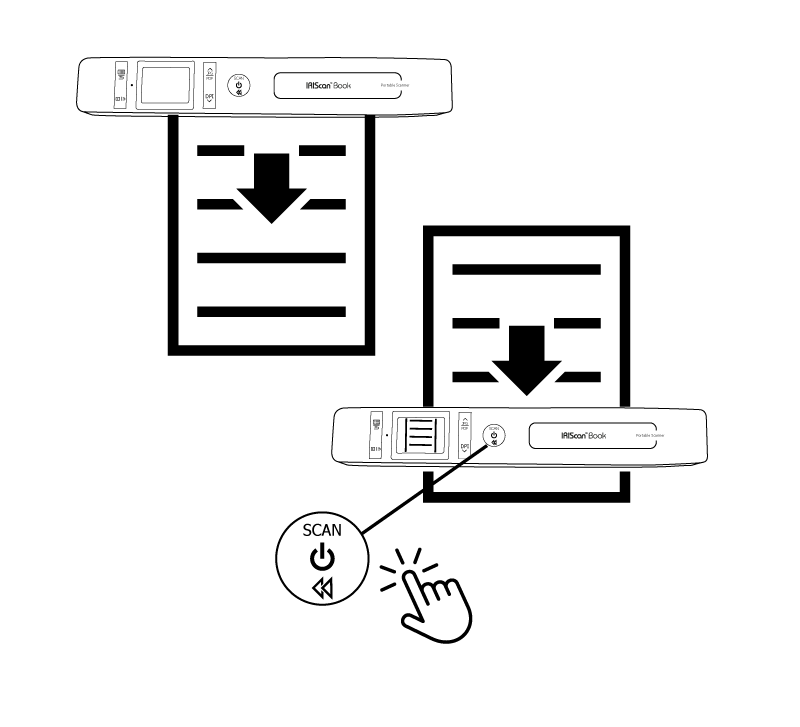
- Press Scan once.
- Slide over document.
- Press Scan to stop.
Download Software
Includes InstantResult(Win), Readiris PDF 23 IRIS(Win/Mac | activation required).
Compatible with: Windows 10, 11 & macOS 12+
Important: Scanner Recognition
This scanner is recognized as an External Memory (Mass Storage) device, not a standard TWAIN scanner.
To use files: Connect via USB > Open Software (Readiris) > Click "Import" or "Open" (Do NOT use the "Scan" button).
For IRIScan Book 7 Dyslexic Only
Additional Readiris Aid software for Dyslexic model users. Windows Only.
Software Setup (PC/Mac)
How to install and import your scans.
Install
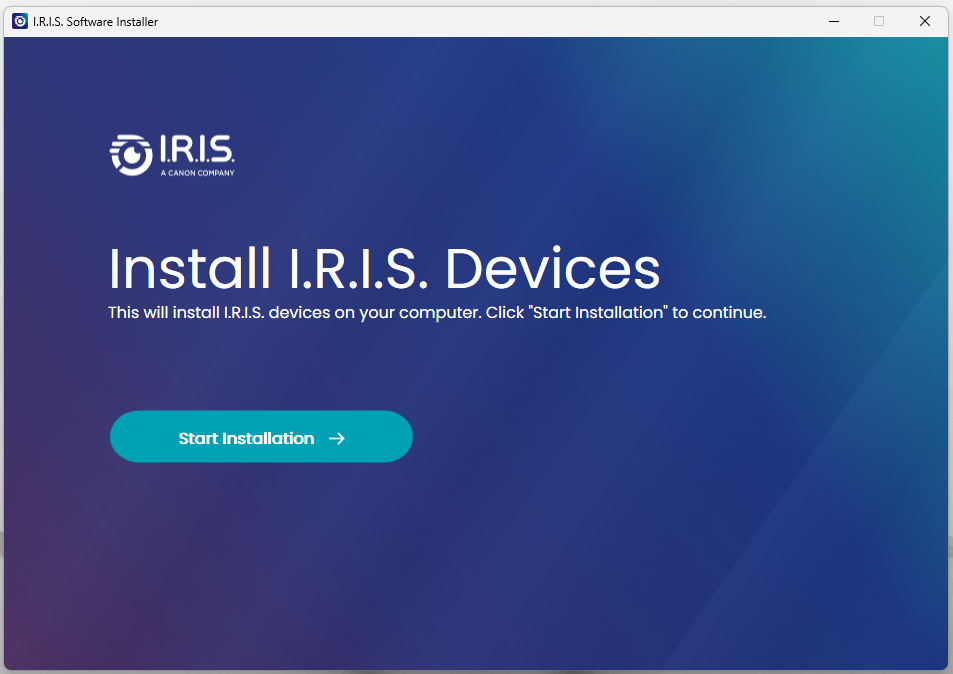
- Run the downloaded file.
- Click "Start Installation".
- Follow the on-screen instructions.
Connect via USB
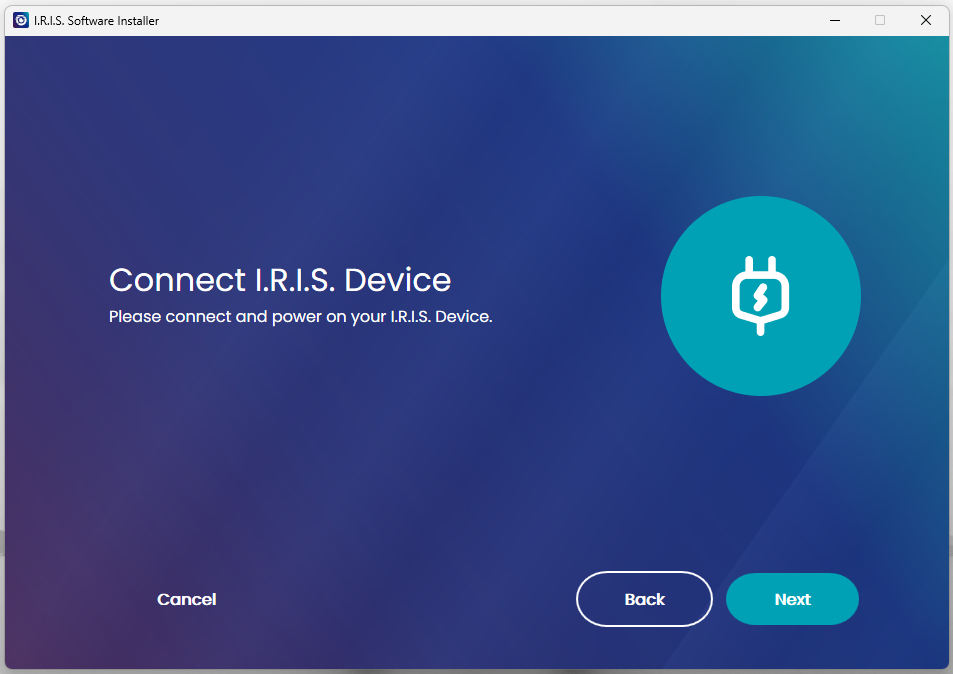
- Connect scanner to PC/Mac via USB cable.
- The scanner screen will show "USB" or "PC".
Select Files
- Open Readiris PDF 23 (Win/mac) or Instant result (Win) or Readiris Dyslexic (Win)
- Click "Open" (Do NOT click Scan).
- Navigate to the scanner drive > DCIM folder.
Convert
- Select your JPEG/PDF files.
- Choose your output format (PDF, Word, etc.).
- Save your editable document.
Discover IRIScan Book 7
Promotional video and overview.
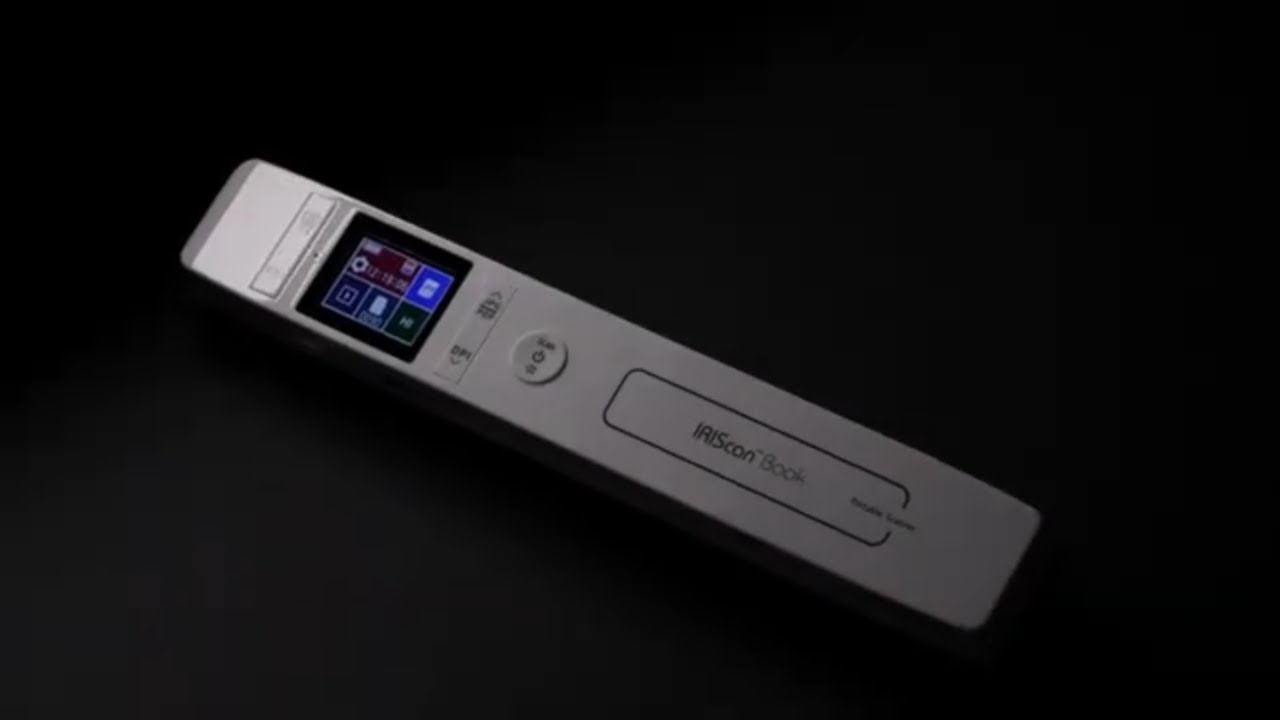
Scanner in Action
See how the scanner moves and works.
Select your product and language
Scanner Specifications
| Image Sensor | A4 color contact image sensor (CIS) |
|---|---|
| Resolution | 300/600/1200 dpi |
| Speed | High resolution color: 4 sec |
| File Format | JPEG, PDF, Multi-page PDF |
| Battery | Built-in rechargeable Lithium-ion battery |
| Screen | 1.5" Color LCD |
System Requirements (Software)
- Windows: 10 or 11
- macOS: 12 or higher
- RAM: 512MB minimum
- Hard Disk: 500MB free space