United states
 Canada
 Brazil
 America Latina
 België
 Deutschland
 España
 France
 Italia
 Nederland
 Portugal
 United Kingdom
 Other European countries
 Australia
 China
China Hong Kong
 Japan
Japan Singapore
 South Korea

Product Support Center
Find the technical support you need for your smart pen scanner.
Supported Products:
- IRISPen Reader 8
- IRISPen Air 8
How to Get Started
Follow these easy steps to setup and use your pen scanner.
1
Charge
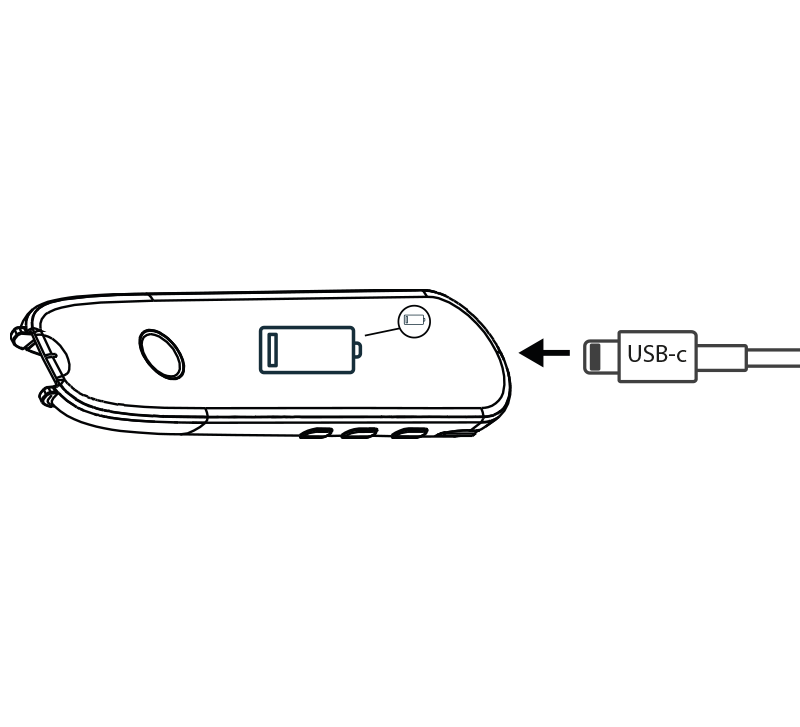
- Before first use, charge the device for at least 1 hour.
- Connect the provided USB-C cable to the pen and a power source.
2
Power On
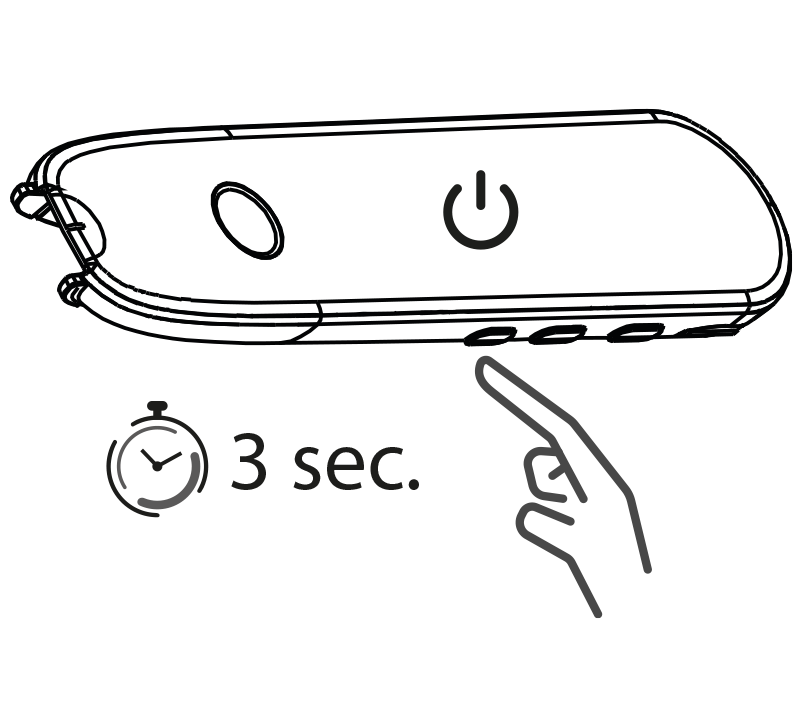
- Press and hold the power button for more than 3 seconds.
- On initial startup, select your preferred device language using the touchscreen.
3
Scan (Standalone)
- Both models can be used completely offline without any external apps.
- Press the tip 1cm before the first word, wait 1 second, then slide to scan.
- Scans and audio are processed directly on the pen.
4
Connect (Air 8 Only)
- 1. Enable Bluetooth on PC/Mobile and on the pen (Settings > Bluetooth > ON).
- 2. Swipe left on the pen and open the IRISPen Connect app.
- 3. Open the IRISPen software on your computer or phone and click Connect.
Important: Configure Your Languages for Best Results
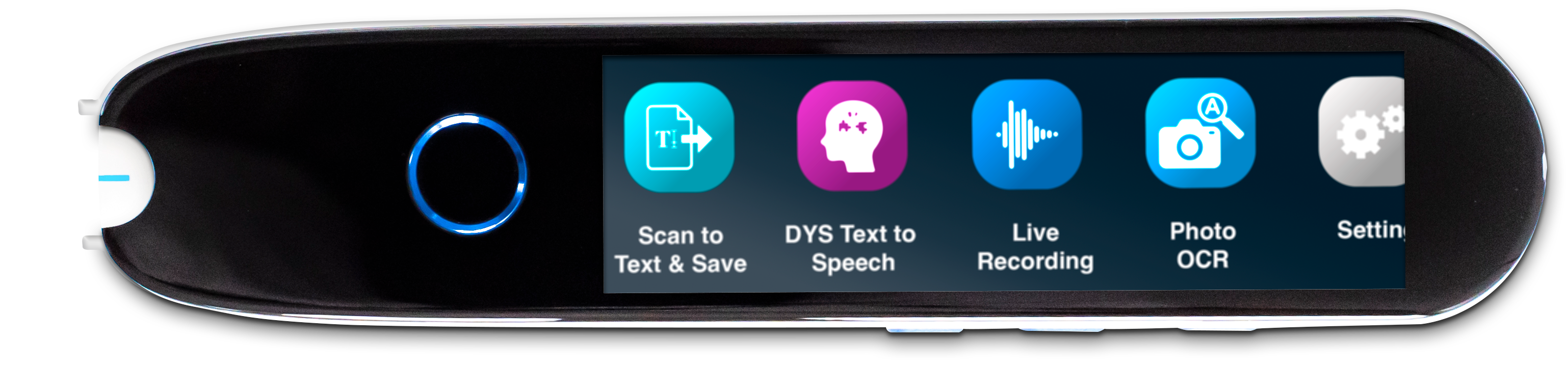
By default, the device is set to English. To ensure the highest text recognition (OCR) accuracy and the correct pronunciation voice tone, you must select your preferred language individually inside each application on the device (e.g., Scan to Text, DYS Text to Speech, Photo OCR, etc.).
How to change: Open the specific app on your pen's touchscreen, tap the Settings icon (gear), and adjust the Language, Voice Speed, and other specific preferences for that tool.
Download Software & Apps
Important: The IRISPen Reader 8 is a standalone product and does not require any software. The downloads below are exclusively for the IRISPen Air 8.
Desktop Applications
Scan and translate directly to your computer using Bluetooth.
Mobile Apps
Use the camera on your phone to scan the QR codes to get the apps.
App Store
For iPhone & iPad
For iPhone & iPad
Google Play
For Android phones & tablets
For Android phones & tablets
Check out our official YouTube channel for more tutorials.
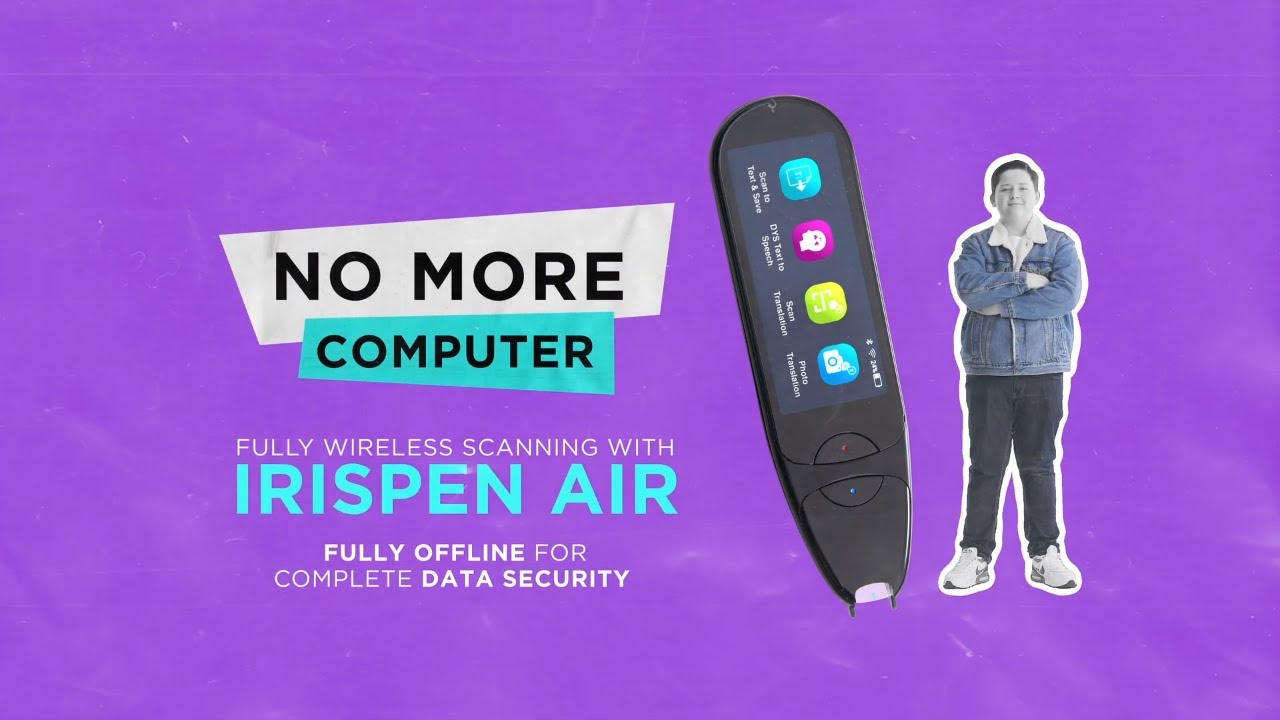
Discover the IRISPen Air 8
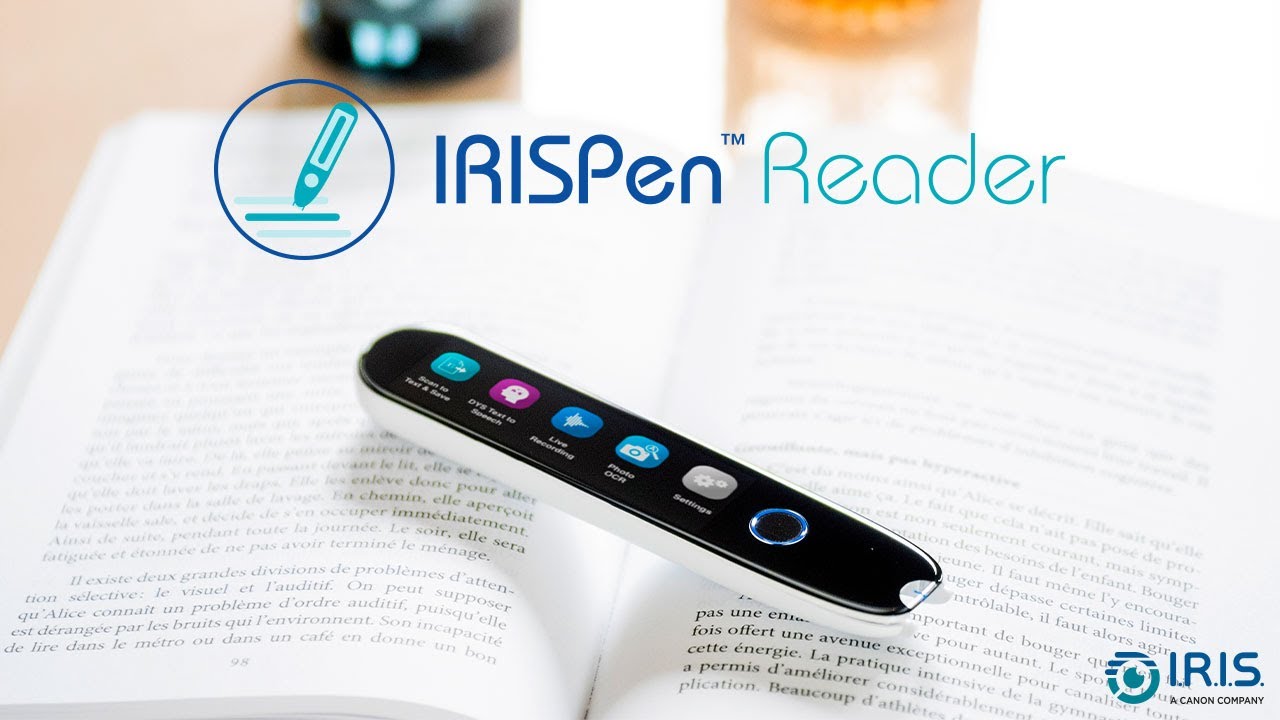
Discover the IRISPen Reader 8

IRISPen Reader 8 - Unboxing

How to start the Pen

How to connect the Pen and access your files

How to use the Photo OCR option

How to Scan & Save

How to use the OCR language option

How to use the Live Recording option

How to use the Dys function

How to change left/right hand
Select your product and language
| Feature | IRISPen Reader 8 | IRISPen Air 8 |
|---|---|---|
| Device Size | 14.9 x 3.2 x 1.4 cm / 5.87 x 1.26 x 0.55 in | 14.9 x 3.2 x 1.4 cm / 5.87 x 1.26 x 0.55 in |
| Weight | 67 gr / 0.15 lbs | 67 gr / 0.15 lbs |
| Battery Type | Polymer Li-ion (1200 mAh) | Polymer Li-ion (1200 mAh) |
| Working / Standby Time | 6-8 hours / 5-7 days | 6-8 hours / 5-7 days |
| Resolution & Speed | 90 dpi / 120 FPS | 90 dpi / 120 FPS |
| Internal Memory | 16 GB (extensible via MicroSD) | 32 GB (extensible via MicroSD) |
| Bluetooth Connectivity | Headphones only | PC, Mac, iOS, Android & Headphones |
| Supported Languages (OCR) | 48 Languages offline | 48 Languages offline |
| Text to Speech (DYS) | 5 Languages offline | 9 Languages offline |
| Box Content | Pen scanner, USB-C cable, USB-C Earphones, Booklet, Case | Pen scanner, USB-C cable, Earphones, Booklet, Case |
System Requirements (IRISPen Air 8 Software)
- Windows: Windows 10 or 11 (Intel Processor, 512MB RAM, 1GB Disk Space)
- macOS: macOS 12.x or higher (Intel/Arm Processor, 512MB RAM, 1GB Disk Space)
- iOS: iPhone 10 or above, iPad latest generation (iOS 17+)
- Android: Android 11 or above