United states
 Canada
 Brazil
 America Latina
 België
 Deutschland
 España
 France
 Italia
 Nederland
 Portugal
 United Kingdom
 Other European countries
 Australia
 China
China Hong Kong
 Japan
Japan Singapore
 South Korea
Product Support Center
Get started with your document camera scanner.
Supported Products:
- IRIScan Desk 6
- IRIScan Desk 6 Pro
- IRIScan Desk 6 Business
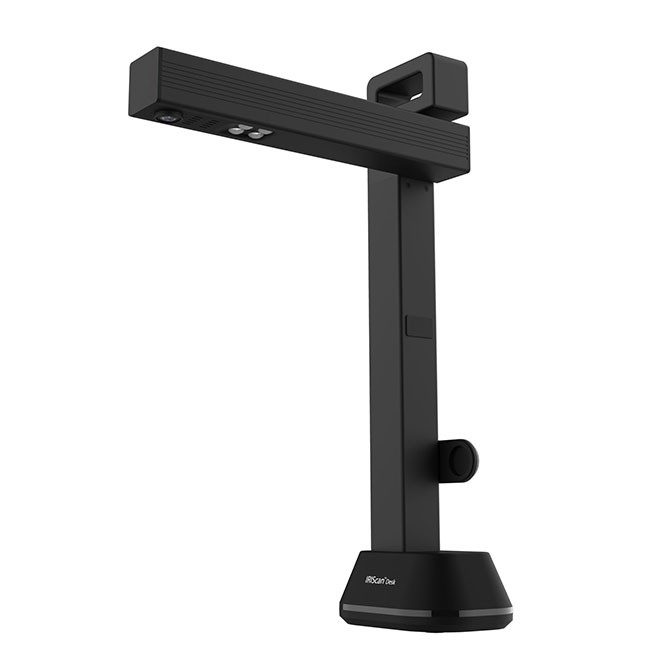
All-in-One Installer
Download Software & Drivers
Includes IRIScan Desk Software, TWAIN Drivers, and Readiris PDF 25 (10-day Trial).
Compatible with: Windows 10, 11 & macOS 12+
Software Installation
Follow these steps to install the driver and applications.
1
Start
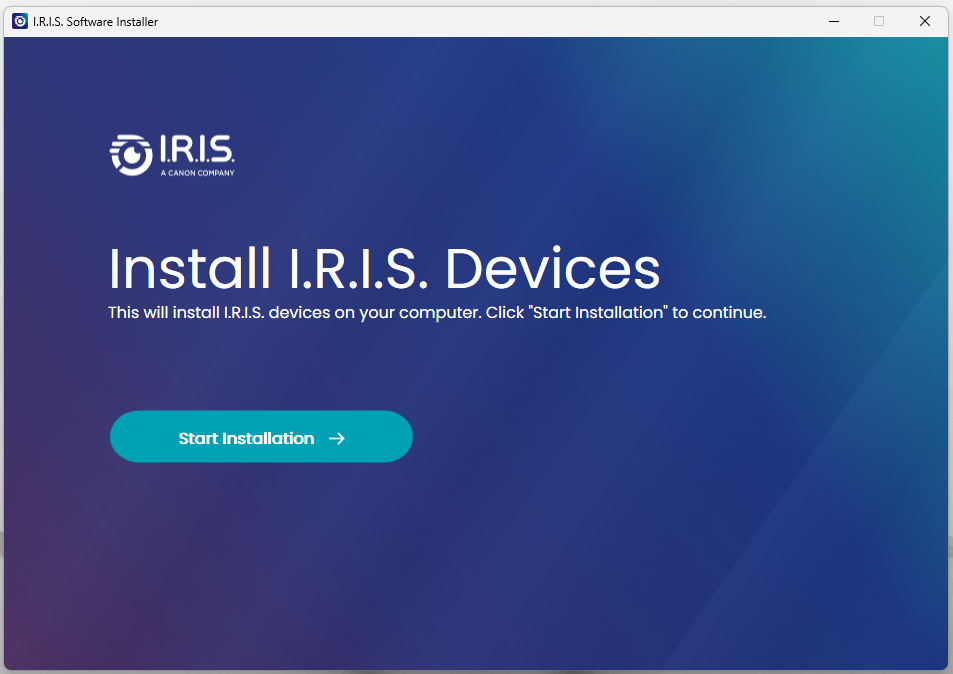
- Run the downloaded file.
- Click "Start Installation".
2
Select
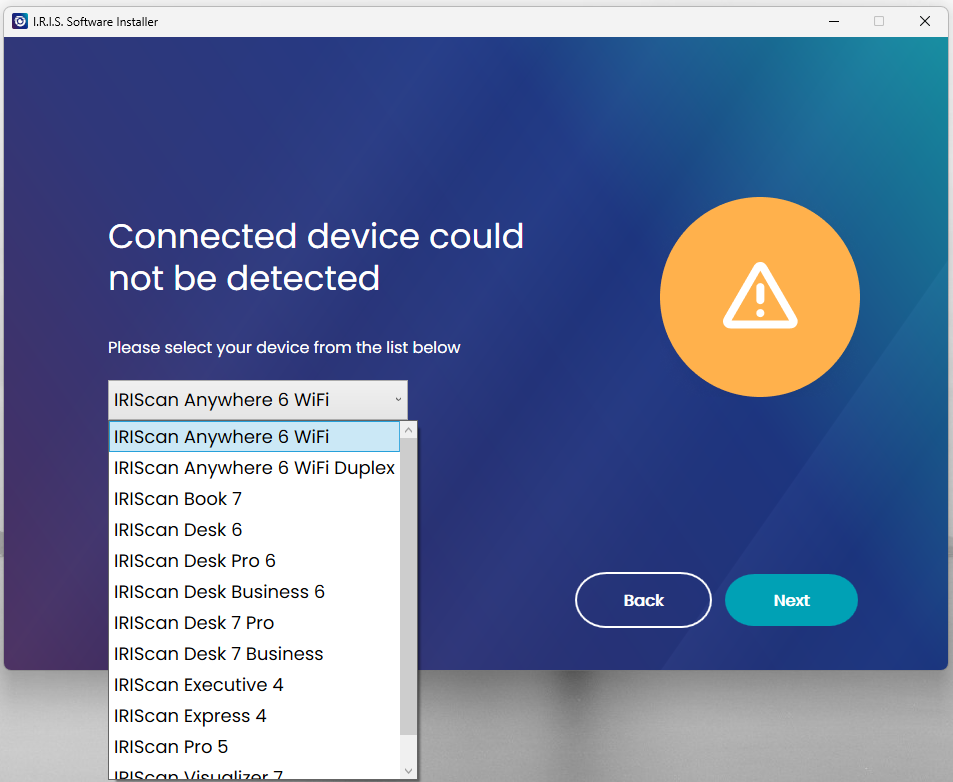
- The installer detects your model.
- Select IRIScan Desk Software.
- Select Readiris PDF 25.
3
Finish
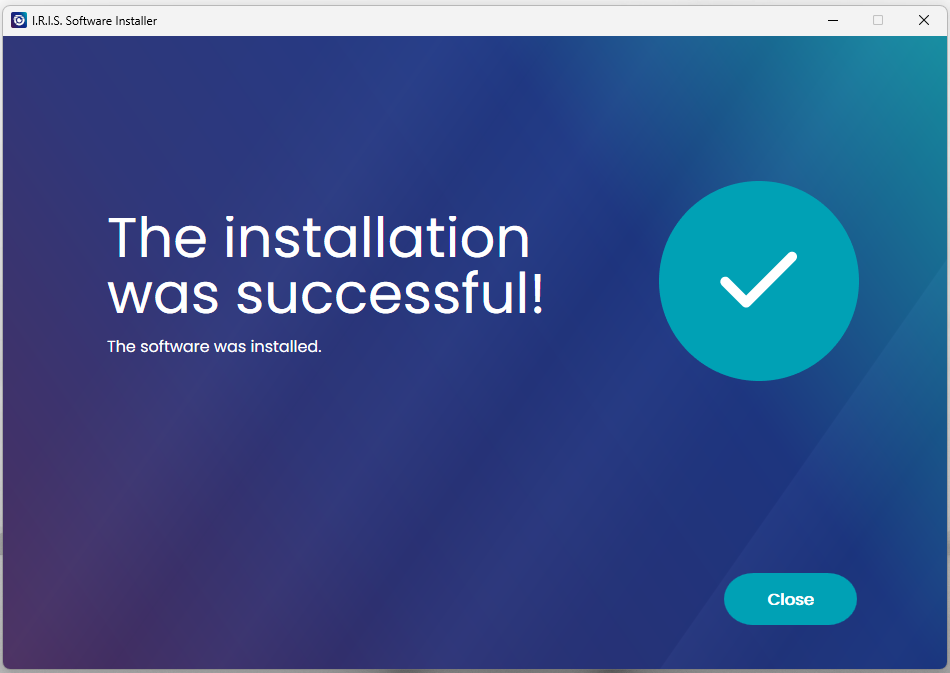
- Click "Close".
- Installation is now complete.
- Proceed to the next step.
4
Connect & Launch
- Connect USB cable to PC.
- Open IRIScan Desk software.
- Important Privacy Check:
- If camera is not detected, go to Windows Settings > Privacy > Camera and Allow Access.
How to Scan
Choose the best method for your needs.
Method 1: IRIScan Desk Software (Recommended)
Best for Books, Multi-page documents, and Video recording. Use this for automatic curve correction and page turning detection.
1
Setup
- Place the Black ScanPad on the desk.
- Place the scanner on the "Scanner Place" mark.
- Place your document/book in the center.
2
Select Mode
- Open IRIScan Desk software.
- Click "Document" tab for flat sheets.
- Click "Book" tab for books (Curve Correction is auto-enabled).
3
Scan
- Check the preview on screen.
- Click "Scan" in the ribbon.
- Or set "Scan Interval" to Automatic to scan when you turn a page.
Method 2: Third-Party Apps (TWAIN)
Use the TWAIN driver to scan directly into other software (like Adobe Acrobat, Cardiris, etc.).
1
Open App
- Open your preferred application (e.g. Cardiris).
- Look for the "Scan" or "Get from Scanner" option.
2
Select Source
- When prompted for a source, select "IRIScan Desk".
- The TWAIN interface will open.
3
Capture
- Click "Capture" in the TWAIN window.
- The image is sent to your application.
Check out our official YouTube channel for all tutorials.
IRIScan Desk 6 Business - Presentation
IRIScan Desk 6 Pro - Presentation
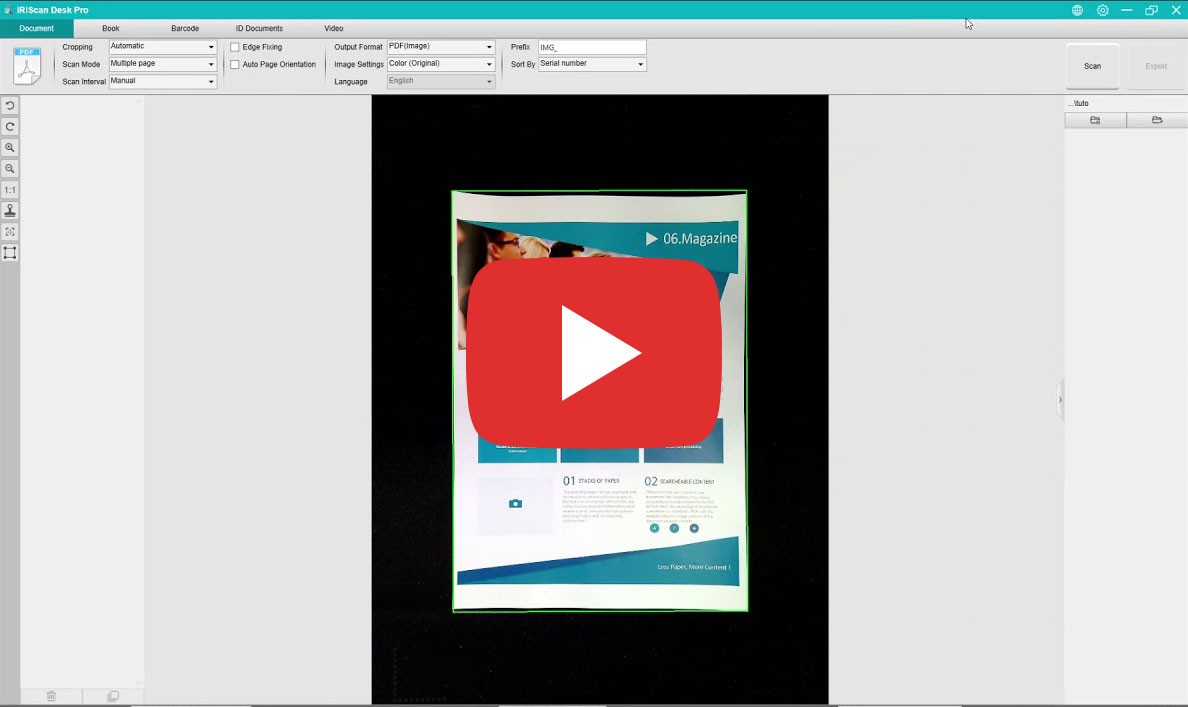
How to scan a document
Setup your Scanner
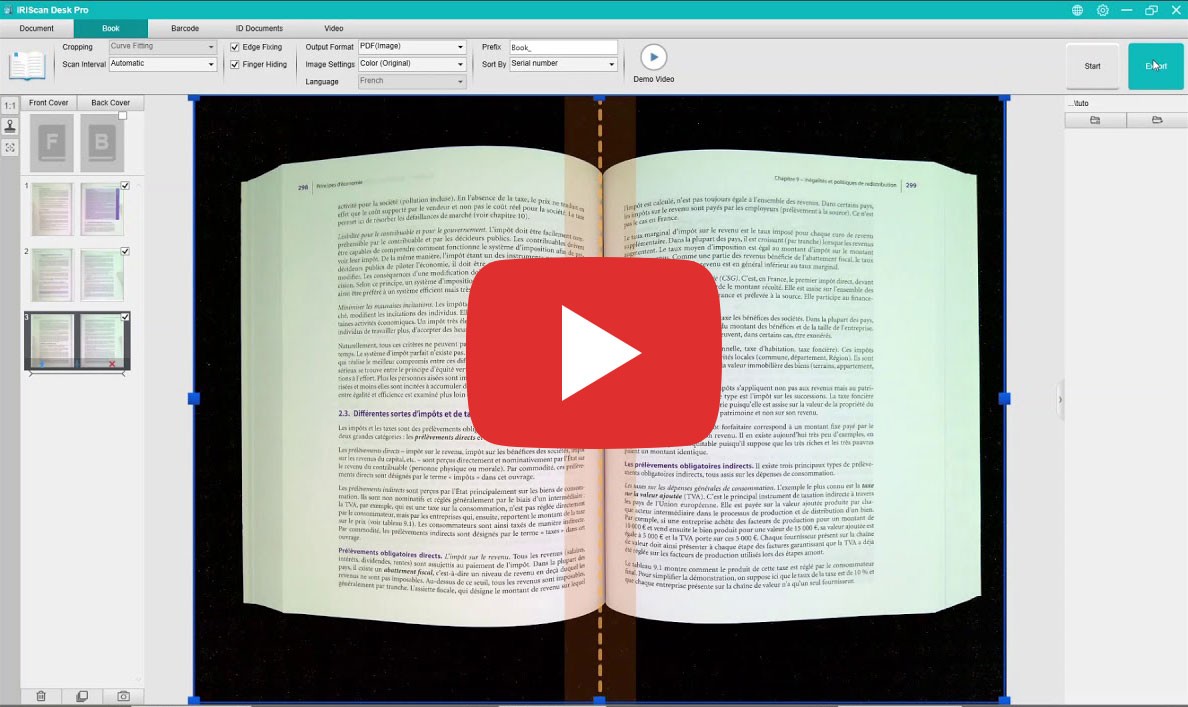
How to scan a book (Curve Correction)
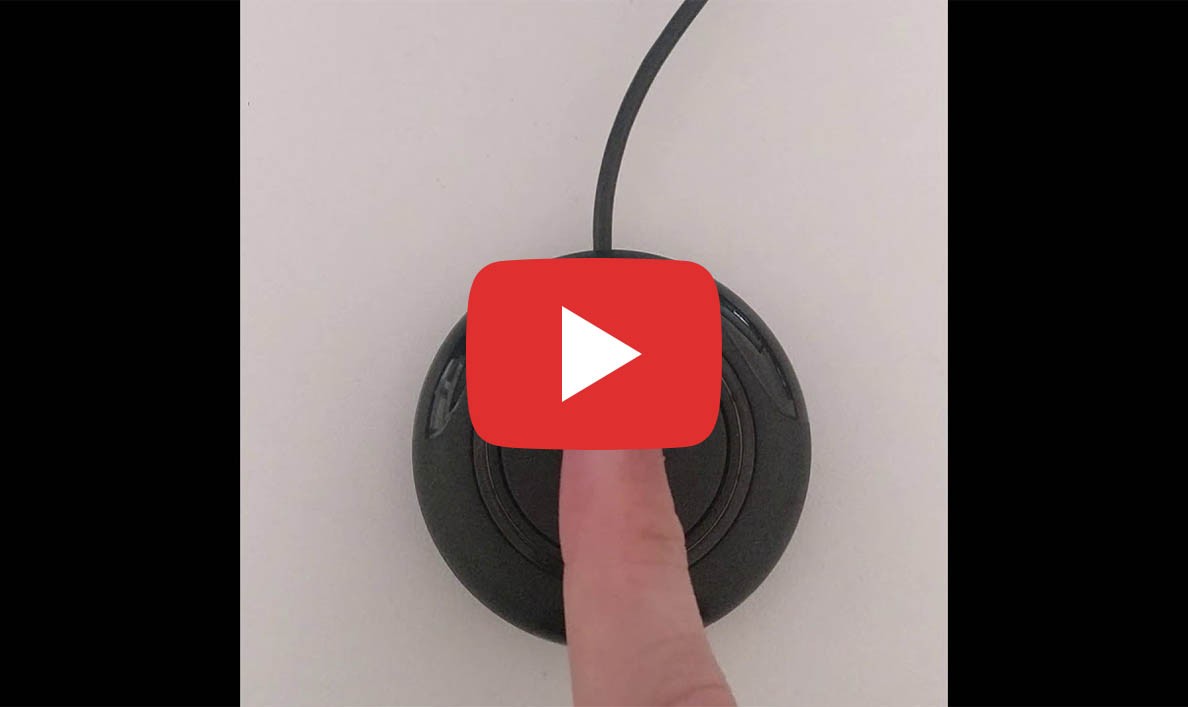
Using the Shutter Button
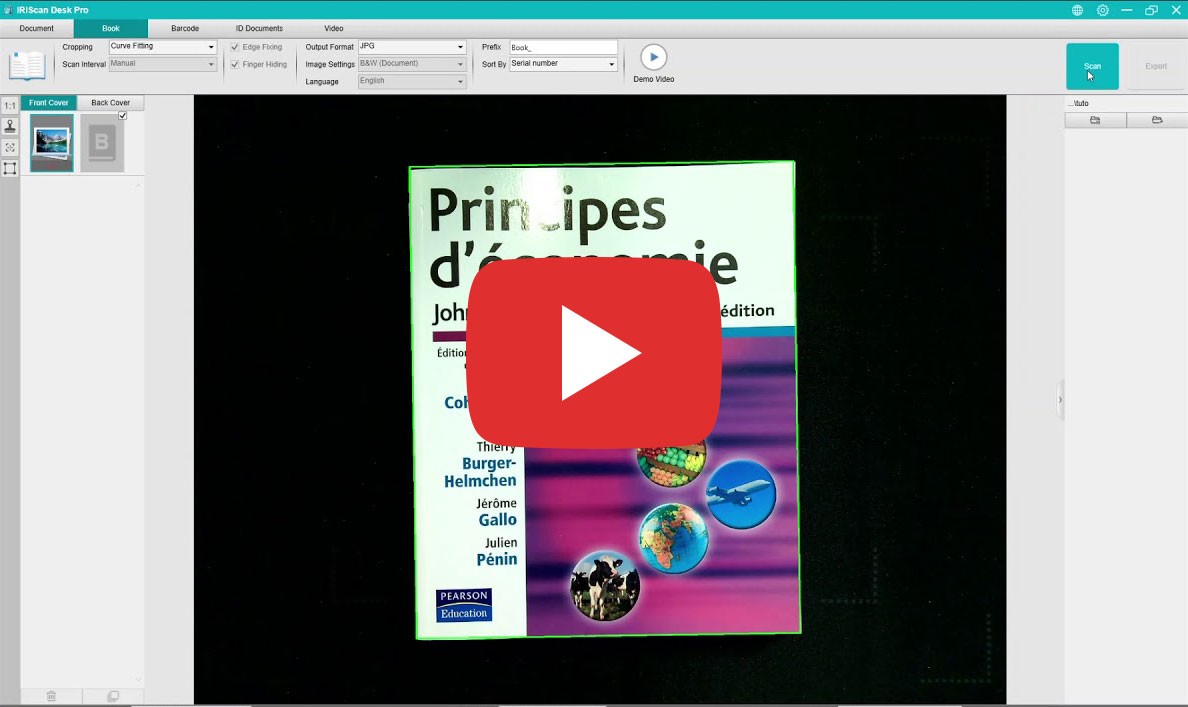
How to scan Front & Back Covers
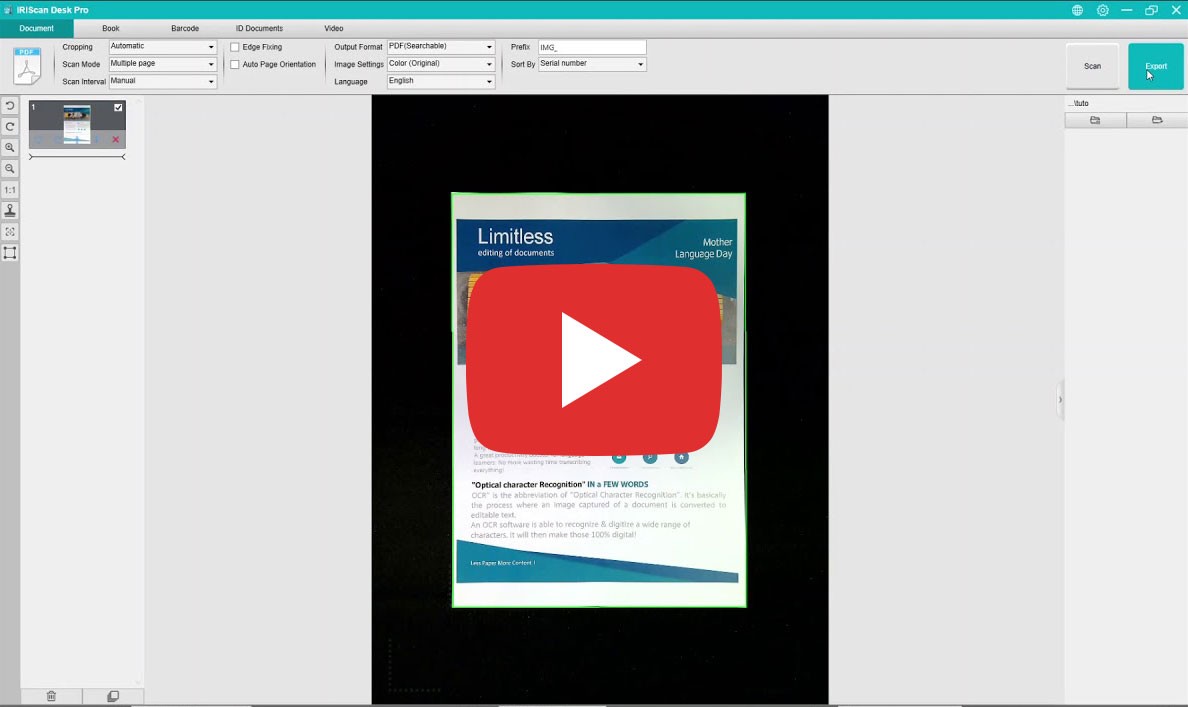
Export to PDF
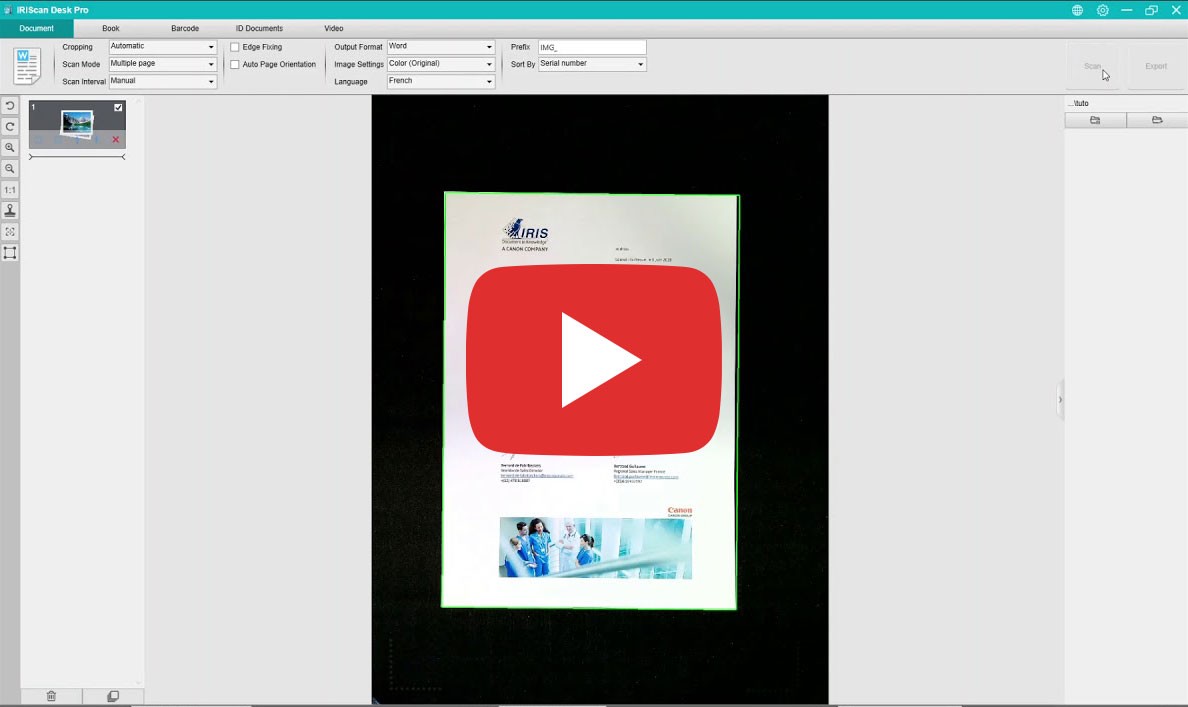
Export to Word
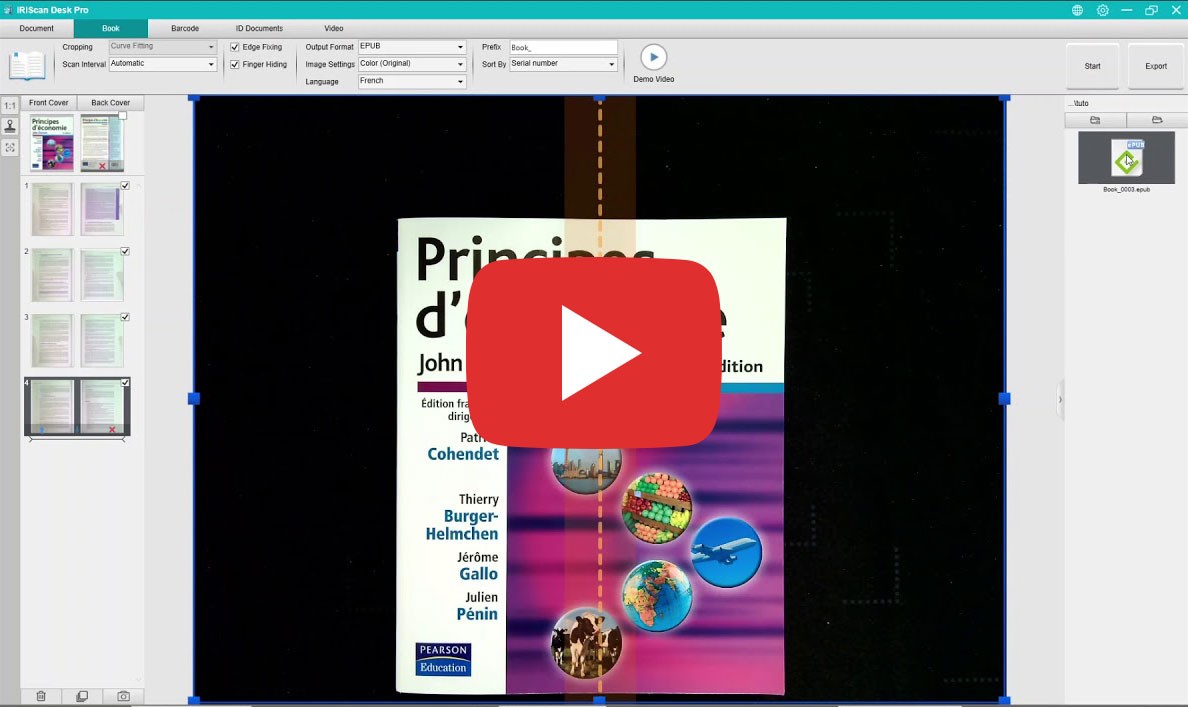
Export to ePub
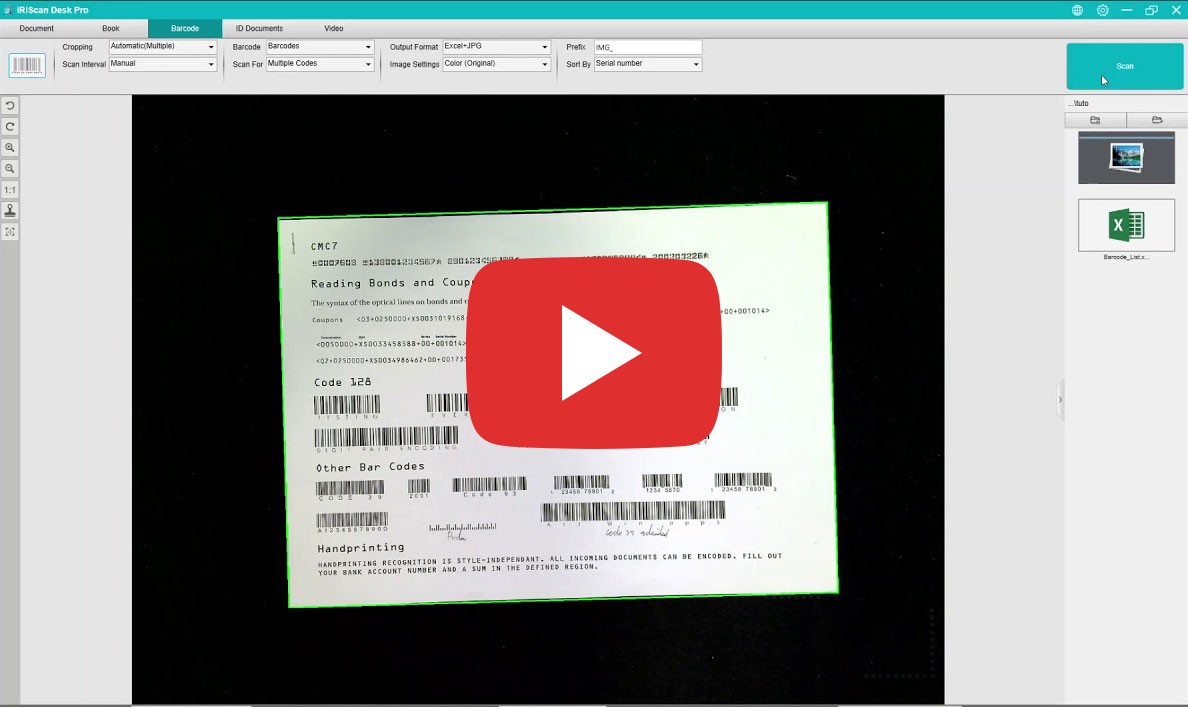
Scan Barcodes to Excel
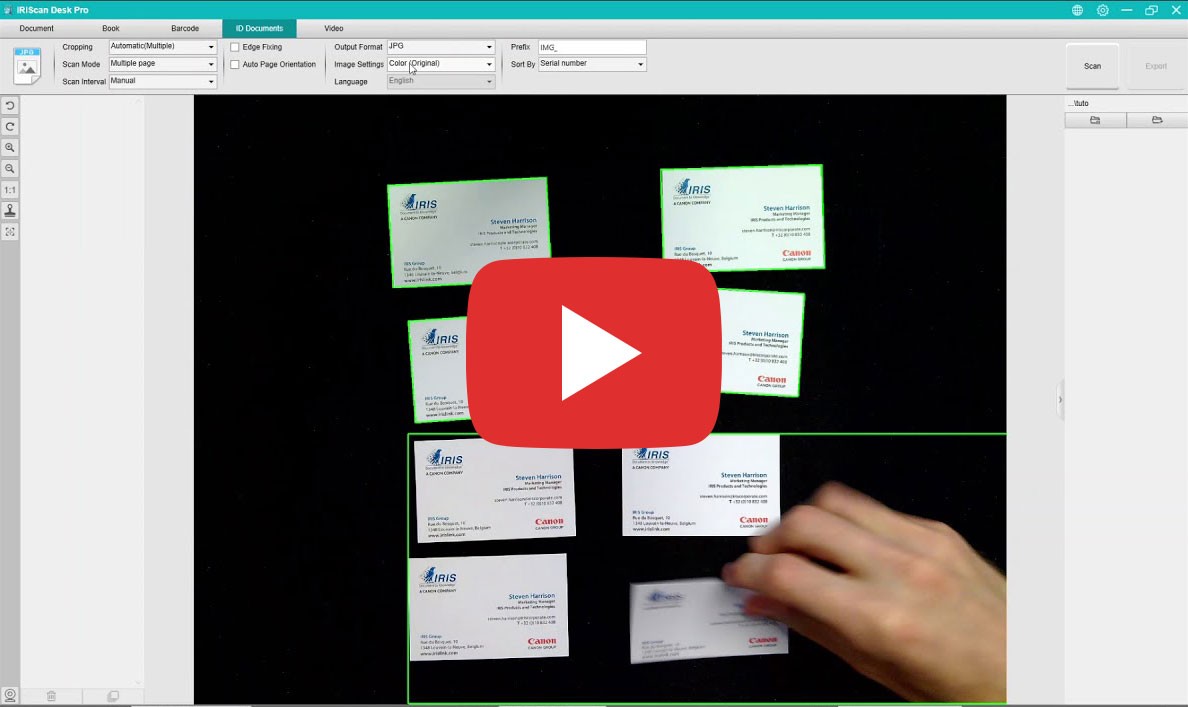
Scan Business Cards
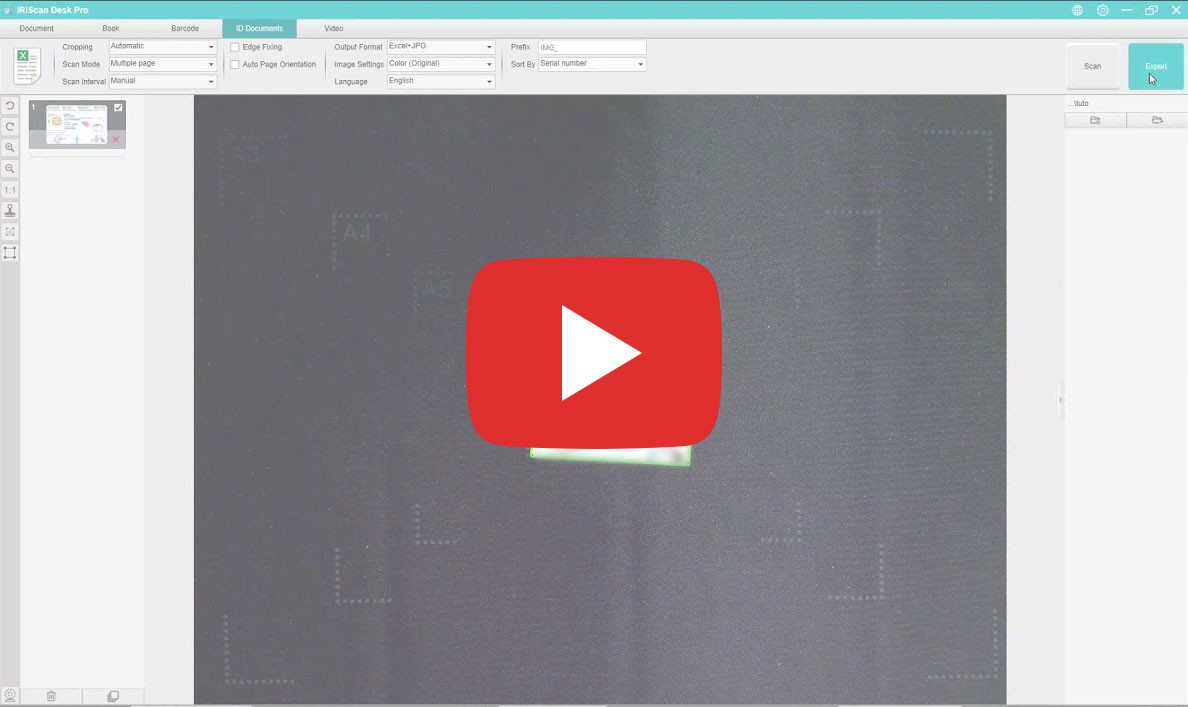
Scan ID Cards to Excel
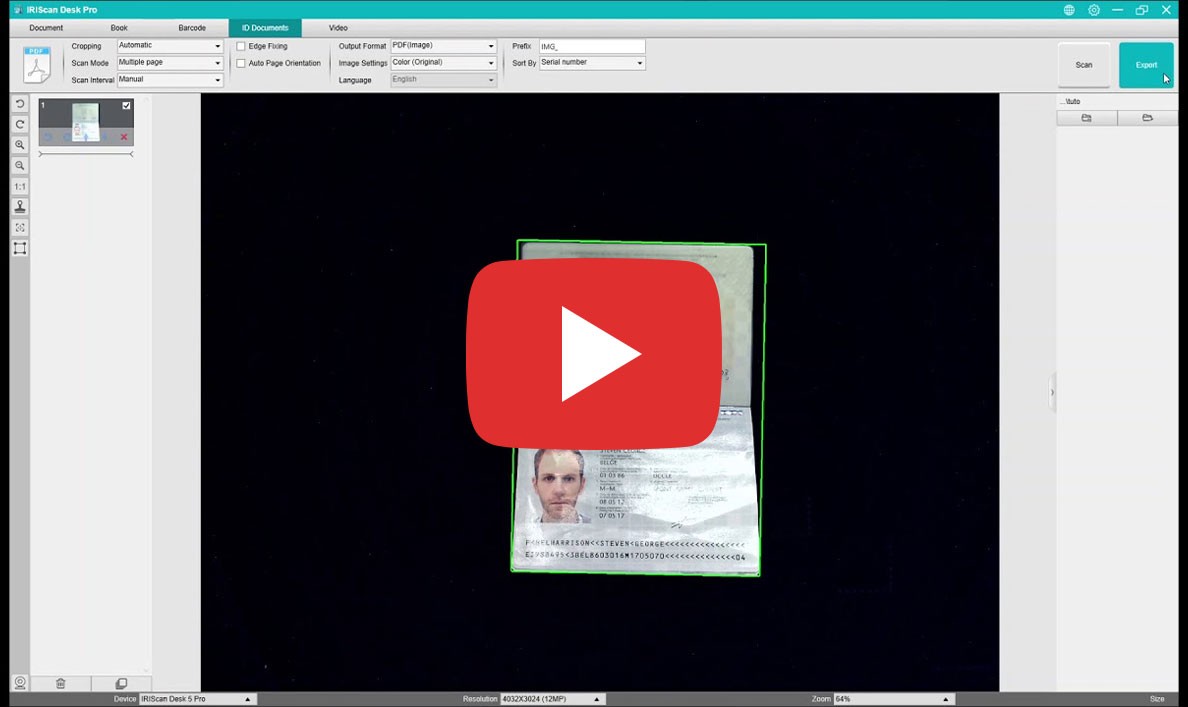
Scan MRZ (Passports & IDs)
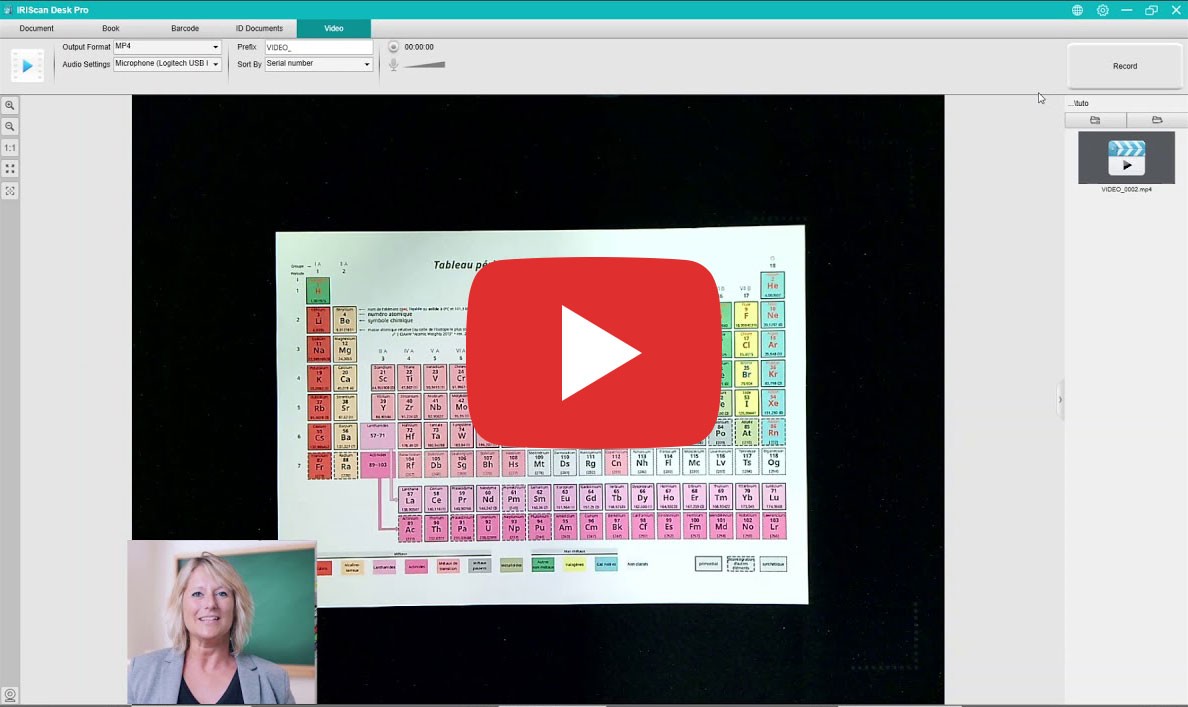
How to use Video Mode
Text to Speech (TTS)
Remote Conferencing Setup
Select your product and language
| Feature | Desk 6 (A4) | Desk 6 Pro (A3) | Desk 6 Business (A3) |
|---|---|---|---|
| Max Document Size | A4 (210 x 297 mm) | A3 (420 x 297 mm) | A3 (420 x 297 mm) |
| Sensor | 8 MP (12 MP extr.) | 13 MP (21 MP extr.) | Dual Lens 16 MP (32 MP extr.) |
| Resolution | 3264 x 2448 px | 4160 x 3120 px | 4608 x 3456 px |
| Video Recording | Up to 15 FPS | Up to 30 FPS | Up to 30 FPS |
| Built-in Lights | 4 LEDs | 4 LEDs | 6 LEDs |
| Scan Button | No (Software only) | External Hand Button | Hand Button + Foot Pedal |
| Connectivity | USB 2.0 | USB 2.0 | USB 2.0 (Powered by AC Adapter) |
System Requirements
- Windows: 10 or 11 (Intel i3, 4GB RAM)
- macOS: 10.15 or higher (Intel/M1/M2)
- Graphics: Intel Standard Graphics or higher (2GB VRAM)
- Hard Disk: 4 GB free space