Calibrate the scanner
Calibrate if the scanned image appears blurred, if the color appears abnormal (for example darker than normal), after more than 8,000 scans, or if the scanner was unused for a long time. The calibration process resets the Contact Image Sensor to restore color accuracy and sharpness.
- Use only the calibration sheet supplied to calibrate the scanner. If you use a different sheet for calibration, it may result in cropping failure.
- Keep the calibration sheet for future use, as re-calibration may be necessary.
- Do not stop the calibration sequence or try to stop the device while it is calibrating.
- Prevent the calibration sheet from getting dusty and damaged. Dirt can invalidate the calibration card or have an effect on the calibration results.
- Start the scanner.
- Start the Capture Tool software on your computer (Start>Programs> Capture Tool). The Select Scanner Model dialog box is shown.
- Select your driver type and scanner model.
- Click OK. The Capture Tool dialog box is shown.
- Click the "Setup" button to prompt the TWAIN user interface.
- Click the "Settings" tab and then click the "Calibration" button. An "Insert calibration sheet" dialog box appears.
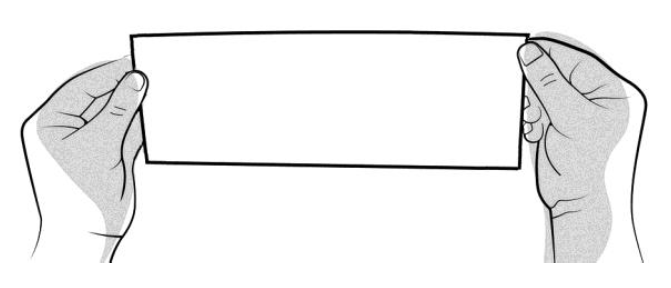
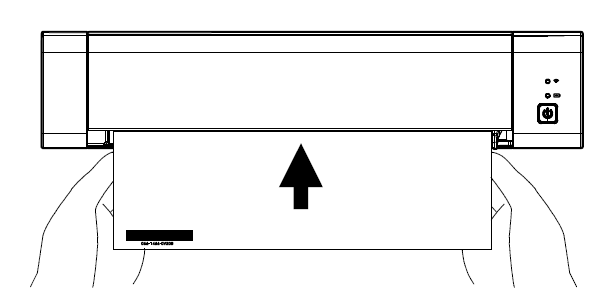
- Hold the edges of the calibration sheet (included) and place it with the text face up and the white area feeding first to the feeder of the scanner as shown.
- Click OK on the "Insert calibration sheet" dialog box to start calibrating the scanner.
- Wait until calibration is complete.